
Organization officer testing flow
Sign in with demo_officer / GdtDemo2026!. Open the demo organization and choose Workspace. This account already has members, cards, events, attendance, and report data.
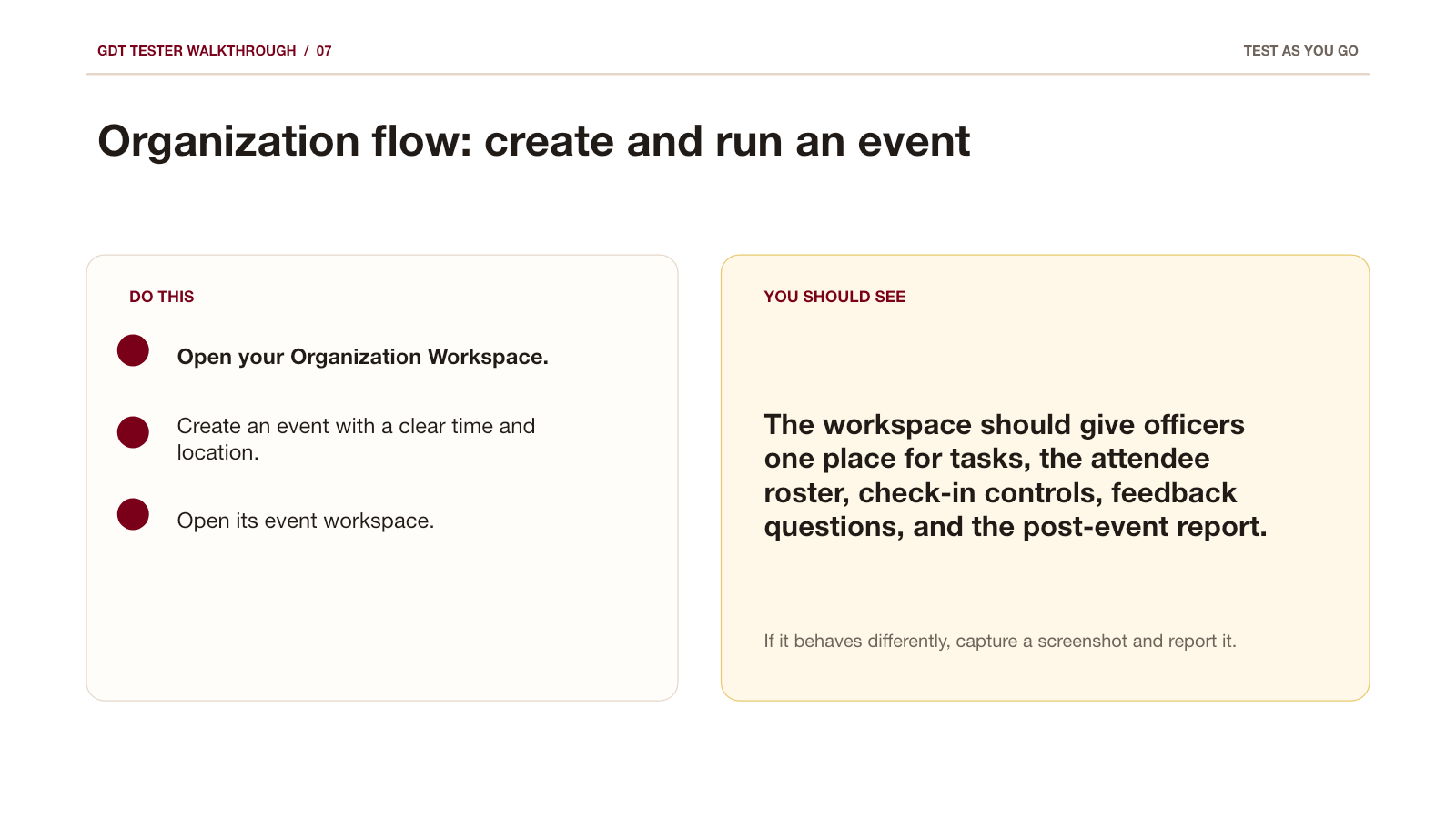
1. Check the public organization and workspace
- Open the organization page; verify the name, description, membership status, posts, and events.
- Use the single Workspace button and confirm only officer tools appear.
- Open Organization settings and check profile, join policy, logo, and visibility controls.
Expected: public and officer views are clearly different; only officers can enter the workspace.
2. People, cards, and member deals
- Open People; inspect members and roles.
- Open Member cards & deals. Issue or revoke a test Member Card.
- Add a member deal: search or drag one or more approved restaurants into the deal panel, add benefit, time, and conditions once, then confirm and publish.
Expected: the deal appears for every selected restaurant, but only eligible members can use it.
3. Create an event
- Choose Create event.
- Add title, time, campus location, capacity, RSVP settings, and any free-food or late-check-in rule.
- Publish, then open the public event page.
Expected: the public page shows the same title, place, time, capacity, and RSVP state.
4. Check in an attendee
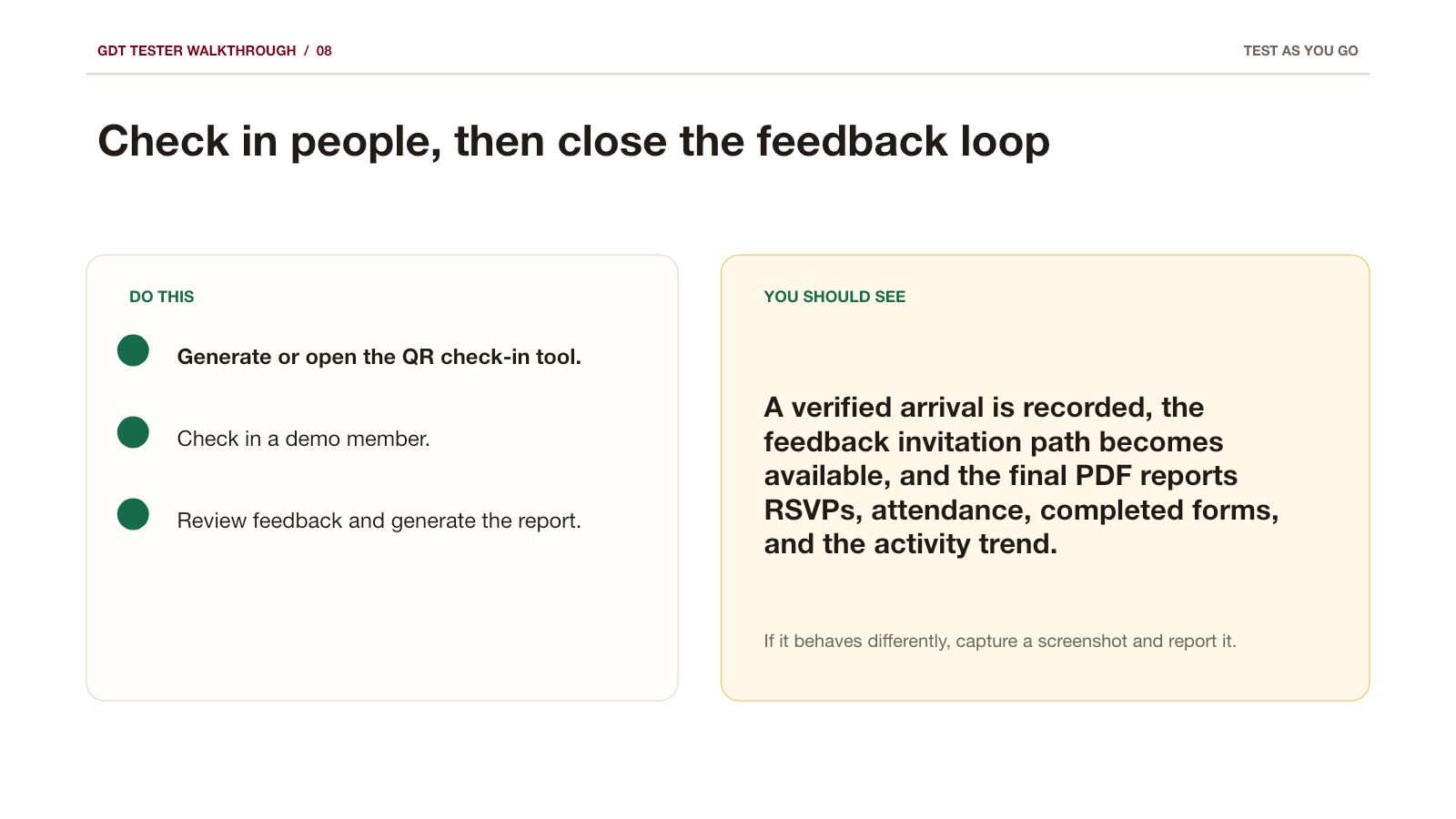
- In the event workspace, open Attendance & scanner and the QR check-in poster.
- With
demo_studentordemo_member, open Wallet and show the Member Card QR. - Scan the code or use manual attendance to mark present, late, absent, or excused.
Expected: duplicate or out-of-window check-ins explain what happened; attendance totals update.
5. Feedback and evaluation report
- Open the event feedback form; add a rating, a choice question, and one written question.
- Submit one response with a member account.
- Generate the evaluation report and review the attendance funnel, trend, response rate, ratings, comments, and export option.
Expected: registered/arrived/responded counts agree with attendance; the report is readable and exports usable data.
6. Community and close-out
- Publish one community update or photo.
- Use Email members only after checking the audience shown in the confirmation step.
- Report issues through
/feedback/and rate tested organization tools at/feedback/rate/?audience=organization.
Event-day checklist
- Confirm time, capacity, check-in settings, and food details.
- Test one Member Card scan and prepare manual attendance.
- Prepare feedback questions before the event ends.
- Generate the report and export attendance after the event.
Finished the guide? Rating each function is the single most useful thing you can send us.
Rate every function Report one problem